
https://servers9.com/wp-content/cache/breeze-minification/js/breeze_how-to-install-wordpress-in-virtualmin-server-1-9116-inline_script_1.js?ver=1786253039
https://servers9.com/wp-content/cache/breeze-minification/js/breeze_how-to-install-wordpress-in-virtualmin-server-1-9116-js-timeme-timeme.min.js?ver=1786253039
https://servers9.com/wp-content/cache/breeze-minification/js/breeze_how-to-install-wordpress-in-virtualmin-server-1-9116-burst-js-burst.min.js?ver=1786253039
https://servers9.com/wp-content/cache/breeze-minification/js/breeze_how-to-install-wordpress-in-virtualmin-server-1-9116-inline_script_2.js?ver=1786253039
https://servers9.com/wp-content/cache/breeze-minification/js/breeze_how-to-install-wordpress-in-virtualmin-server-1-9116-js-js-front-end-breeze-prefetch-links.min.js?ver=1786253039
https://servers9.com/wp-content/cache/breeze-minification/js/breeze_how-to-install-wordpress-in-virtualmin-server-1-9116-js-jquery-jquery.min.js?ver=1786253039
https://servers9.com/wp-content/cache/breeze-minification/js/breeze_how-to-install-wordpress-in-virtualmin-server-1-9116-js-jquery-jquery-migrate.min.js?ver=1786253039
How to Install WordPress on a Virtualmin Server (Step-by-Step Guide)
Servers9
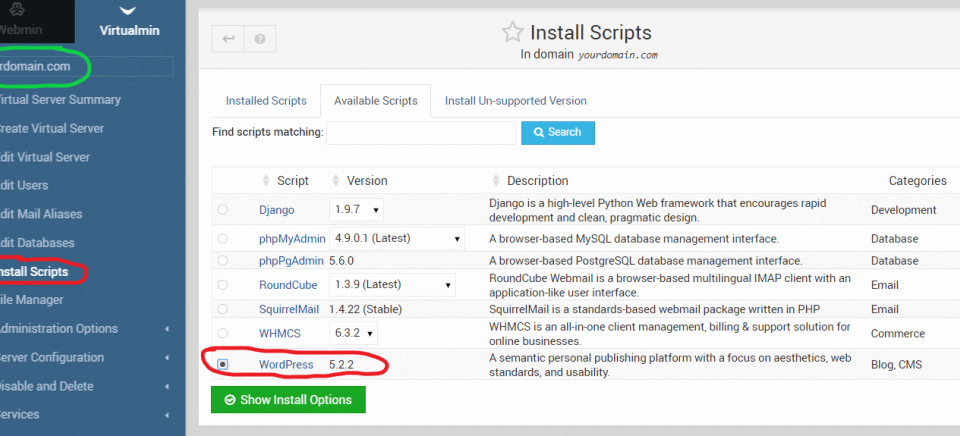
Looking to set up a WordPress site on your Virtualmin-managed VPS or dedicated server ? This guide walks you through the complete process of installing WordPress on a Virtualmin server running Apache, PHP, and MySQL/MariaDB.
Whether you’re hosting multiple domains or running a single site, Virtualmin makes server management easier β and installing WordPress is straightforward once you know the steps.
β
Requirements Before You Start Make sure you have the following ready:
A Virtualmin server (VPS or dedicated) Apache, PHP, and MySQL/MariaDB installed A registered domain pointed to the server Root or sudo SSH access Need a reliable VPS or dedicated server? π Check out high-performance hosting from Servers9
π§ Step 1: Create a New Virtual Server Log in to Virtualmin at https://your-server-ip:10000 Go to Create Virtual Server Fill out:Domain Name Admin Password Under Enabled features , make sure:Apache webserverMySQL databasePHP (FPM preferred) are checked Click Create Server π§ Step 2: Download WordPress SSH into your server and run:
cd /home/yourdomain/public_html wget https://wordpress.org/latest.tar.gz tar -xzf latest.tar.gz mv wordpress/* . rm -rf wordpress latest.tar.gzThis puts WordPress in the correct web root directory.
π§ Step 3: Set File Permissions chown -R yourdomain:yourdomain /home/yourdomain/public_html chmod -R 755 /home/yourdomain/public_htmlReplace yourdomain with your actual system username from Virtualmin.
π§ Step 4: Create the WordPress Database In Virtualmin, go to your virtual server Click Edit Databases Click Create a new database Give it a name like wordpress Note the database name , username , and password π§ Step 5: Configure wp-config.php cd /home/yourdomain/public_html cp wp-config-sample.php wp-config.php nano wp-config.phpUpdate the DB details:
phpCopyEditdefine( 'DB_NAME', 'your_db_name' );
define( 'DB_USER', 'your_db_user' );
define( 'DB_PASSWORD', 'your_db_password' );
define( 'DB_HOST', 'localhost' );
Save and exit.
π§ Step 6: Run the WordPress Installer Visit your domain in a browser:
arduinoCopyEdithttp://yourdomain.com
Youβll be guided through:
Site title Admin username/password Language selection After submitting the form, WordPress will be installed!
βοΈ Optional: Enable HTTPS (SSL) In Virtualmin, go to Server Configuration > SSL Certificate Click Letβs Encrypt Request a certificate for your domain Once done, redirect HTTP to HTTPS by editing .htaccess or enabling it via Virtualmin. π‘οΈ Security Tip Always keep WordPress, plugins, and themes updated Use a plugin like Wordfence or iThemes Security Disable XML-RPC if not used π Need High Performance Servers? Want faster load times, better uptime, and WordPress-specific optimizations?
π Explore our VPS and Dedicated Servers at Servers9
Post navigation
https://servers9.com/wp-content/cache/breeze-minification/js/breeze_how-to-install-wordpress-in-virtualmin-server-1-9116-inline_script_3.js?ver=1786253039
https://servers9.com/wp-content/cache/breeze-minification/js/breeze_how-to-install-wordpress-in-virtualmin-server-1-9116-inline_script_4.js?ver=1786253039
https://servers9.com/wp-content/cache/breeze-minification/js/breeze_how-to-install-wordpress-in-virtualmin-server-1-9116-inline_script_5.js?ver=1786253039
https://servers9.com/wp-content/cache/breeze-minification/js/breeze_how-to-install-wordpress-in-virtualmin-server-1-9116-onecommunity-js-login.js?ver=1786253039
https://servers9.com/wp-content/cache/breeze-minification/js/breeze_how-to-install-wordpress-in-virtualmin-server-1-9116-wp-includes-js-imagesloaded.min.js?ver=1786253039
https://servers9.com/wp-content/cache/breeze-minification/js/breeze_how-to-install-wordpress-in-virtualmin-server-1-9116-wp-includes-js-masonry.min.js?ver=1786253039
https://servers9.com/wp-content/cache/breeze-minification/js/breeze_how-to-install-wordpress-in-virtualmin-server-1-9116-onecommunity-shortcodes-js-functions.js?ver=1786253039
https://servers9.com/wp-content/cache/breeze-minification/js/breeze_how-to-install-wordpress-in-virtualmin-server-1-9116-assets-js-ultp-youtube-gallery-block.js?ver=1786253039
https://servers9.com/wp-content/cache/breeze-minification/js/breeze_how-to-install-wordpress-in-virtualmin-server-1-9116-onecommunity-js-functions.js?ver=1786253039
https://servers9.com/wp-content/cache/breeze-minification/js/breeze_how-to-install-wordpress-in-virtualmin-server-1-9116-inline_script_6.js?ver=1786253039
https://servers9.com/wp-content/cache/breeze-minification/js/breeze_how-to-install-wordpress-in-virtualmin-server-1-9116-js-view-general.min.js?ver=1786253039
https://servers9.com/wp-content/cache/breeze-minification/js/breeze_how-to-install-wordpress-in-virtualmin-server-1-9116-inline_script_7.js?ver=1786253039